

How to Make an Amazing LinkedIn Headshot Instantly
Learn how to create a professional LinkedIn headshot with AI. Look polished, try a few styles on Headshot Generator AI, and use a bold background like yellow to stand out in the feed.
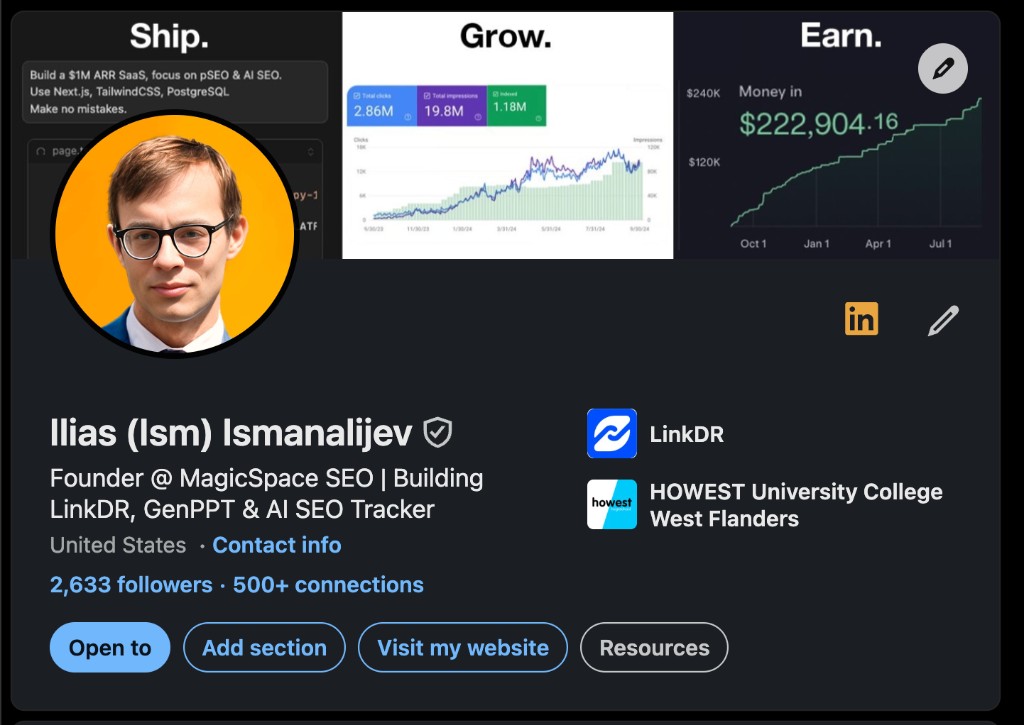
Ilias Ism
10 min read
Your LinkedIn headshot is often the first impression you make online. Recruiters, clients, and collaborators decide in a fraction of a second whether to read your headline, connect, or move on. A strong photo does not need a studio booking or a full afternoon of setup — you can get a polished result quickly if you know what matters.
This guide covers what makes a great LinkedIn headshot, how to take one yourself, and how AI can give you a professional result in minutes with our free AI profile picture maker.
My simple recipe for a great LinkedIn headshot
If you want a LinkedIn headshot that actually works, keep it practical:
- Look professional. Wear what you would wear to meet a client or hiring manager. Clean, well-fitting, no distracting patterns.
- Take a few reference photos of yourself. Good lighting, face clearly visible, a couple of angles. You do not need a studio — a phone and a window are enough.
- Generate a few styles with AI. Upload those photos to Headshot Generator AI and try several looks until one feels like you, just polished.
- Pick a background that pops in the feed. This is the part most people skip — and the one that changed my results the most.
That last step is worth its own section.
Use a yellow background to stand out in the feed
On LinkedIn, your profile picture is tiny — especially in the activity feed, where you compete with posts, comments, and ads for attention.
Most people use grey, white, or blurred office backgrounds. They blend in. I use a solid yellow background on my avatar, and it makes a real difference when people scroll.
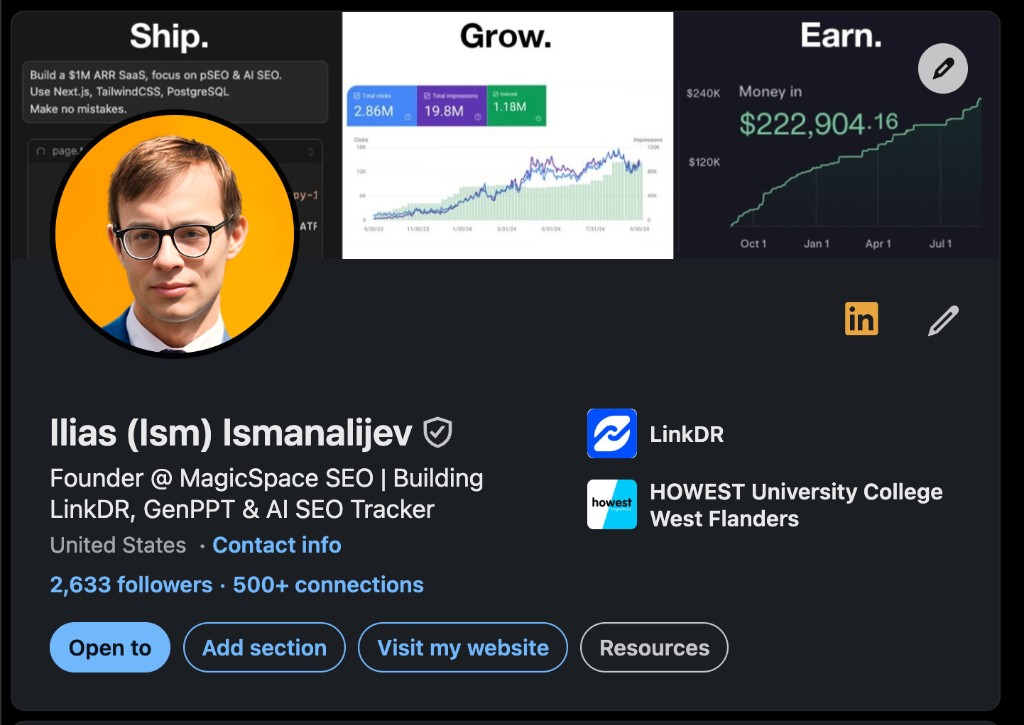
The yellow circle is instantly recognizable. You do not have to use yellow specifically — any bold, consistent color that fits your brand can work. The point is to be deliberately visible, not accidentally invisible.
Scroll through your own activity feed and look at how your current photo compares to everything around it. If you disappear into the UI, it is time to update.
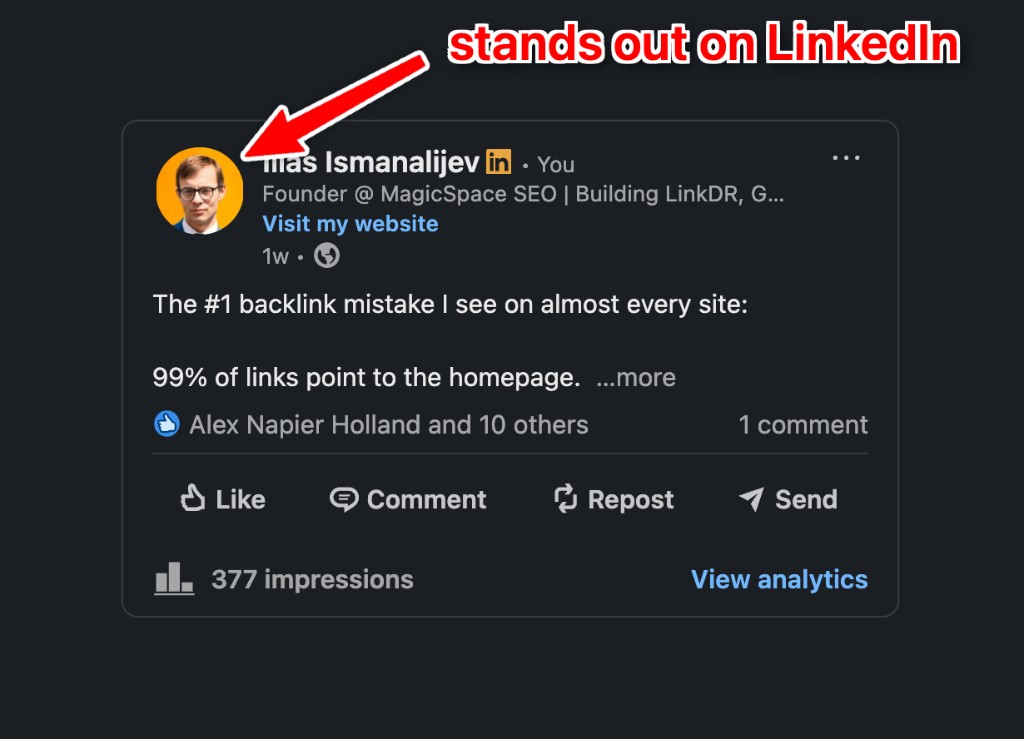
When someone is scanning dozens of posts, a high-contrast headshot helps them spot you before they even read your name. That is free visibility on a platform where attention is the whole game.
You can generate a yellow-background portrait with the profile picture maker in one pass — try a prompt like: “Professional LinkedIn headshot, head and shoulders, solid bright yellow background, navy blazer, natural confident expression, sharp focus on eyes.”
Why your LinkedIn headshot matters
LinkedIn is a business network, not a personal photo album. Your profile picture appears next to every comment, message, and search result. That tiny thumbnail has an outsized impact on how people perceive your competence, approachability, and trustworthiness.
Research on first impressions suggests people form quick judgments from a face alone — often in less than a second. For your career, that means your headshot is doing real work before anyone reads your experience section.
A good LinkedIn headshot helps you:
- Look credible when recruiters scan search results
- Feel confident when you share posts or comment on industry threads
- Stay recognizable when you meet connections in person
- Signal that you take your professional brand seriously
If your current photo is cropped from a wedding, hidden behind sunglasses, or five years out of date, you are leaving opportunities on the table.
What makes a great LinkedIn headshot
The best LinkedIn photos share a few traits. They are not about looking like a model — they are about looking like you on your best professional day.
Frame head and shoulders
LinkedIn displays your photo as a small circle. A tight head-and-shoulder crop keeps your face readable at every size. Aim for your face to fill roughly 60–80% of the frame. Full-body shots disappear on mobile.
Keep the background simple — or deliberately bold
Busy backgrounds compete with your face. For a classic corporate look, neutral walls, soft office blur, or a clean outdoor backdrop all work well.
If you post on LinkedIn regularly, consider going the other direction: a solid, high-contrast color (like yellow) that stays consistent across your profile and feed activity. It reads as intentional branding, not a distracting photo booth backdrop.
Dress for your industry
There is no single “LinkedIn uniform.” A founder in a hoodie can look just as credible as an executive in a blazer — as long as the outfit matches how you actually show up for work. Wear something clean, well-fitting, and aligned with the clients or employers you want to attract.
Avoid loud patterns, large logos, and neon colors that pull focus away from your face.
Use a natural, confident expression
A genuine smile builds trust. A forced smile does the opposite. If smiling on camera feels awkward, a relaxed neutral expression with soft eyes works too. The key is looking approachable, not startled.
Stay current and authentic
Your photo should look like you today. If someone would not recognize you at a coffee meeting, update the image. Light retouching is fine; heavy filters that change your features are not.
DIY LinkedIn headshot tips
You can take a solid professional headshot at home with a smartphone and a little planning.
Lighting: Stand facing a window in the morning or late afternoon. Avoid harsh overhead lights that cast shadows under your eyes.
Camera position: Use the rear camera, not the selfie camera. Place the phone at eye level on a tripod or stack of books. Frame from the chest up and leave a little space above your head.
Wardrobe: Solid colors in navy, white, grey, black, or dark green photograph well. Iron your shirt and check hair, lint, and makeup before shooting.
Shoot in volume: Take at least 20 photos with small changes — slight smile, shoulders angled, chin neutral. Review on a laptop screen, not just your phone.
Edit lightly: Crop, straighten, and adjust brightness. Skip skin blurring, beauty filters, and teeth whitening that make the result feel artificial.
These steps mirror what professional photographers recommend for DIY business portraits — and they work. The trade-off is time, consistency, and getting the expression right without someone coaching you through it.
How to get professional headshots with AI
AI headshot tools changed the equation. Instead of booking a photographer, you upload a few everyday selfies and get studio-style portraits in minutes.
Here is the workflow I recommend with Headshot Generator AI:
- Upload a few clear photos of yourself. Recent images, good lighting, face visible, minimal filters. Two or three angles is plenty.
- Pick a style — or create your own. Browse ready-made looks on the styles page, or build a custom style from reference photos and a short description.
- Generate several options. Do not stop at one result — try corporate, casual, and a bold background variant (like yellow) and compare them side by side.
- Pick what feels authentic. Choose the version that looks like you on your best day, not the most airbrushed option.
- Download and upload to LinkedIn. Use the highest resolution export. LinkedIn crops to a circle, so a head-and-shoulder framing works best.
Generate with ready-made styles
Headshot Generator AI ships with professional styles you can use immediately — no prompt engineering required. Pick one like Corporate Headshot, select your model, hit generate, and you get studio-quality results in under a minute.
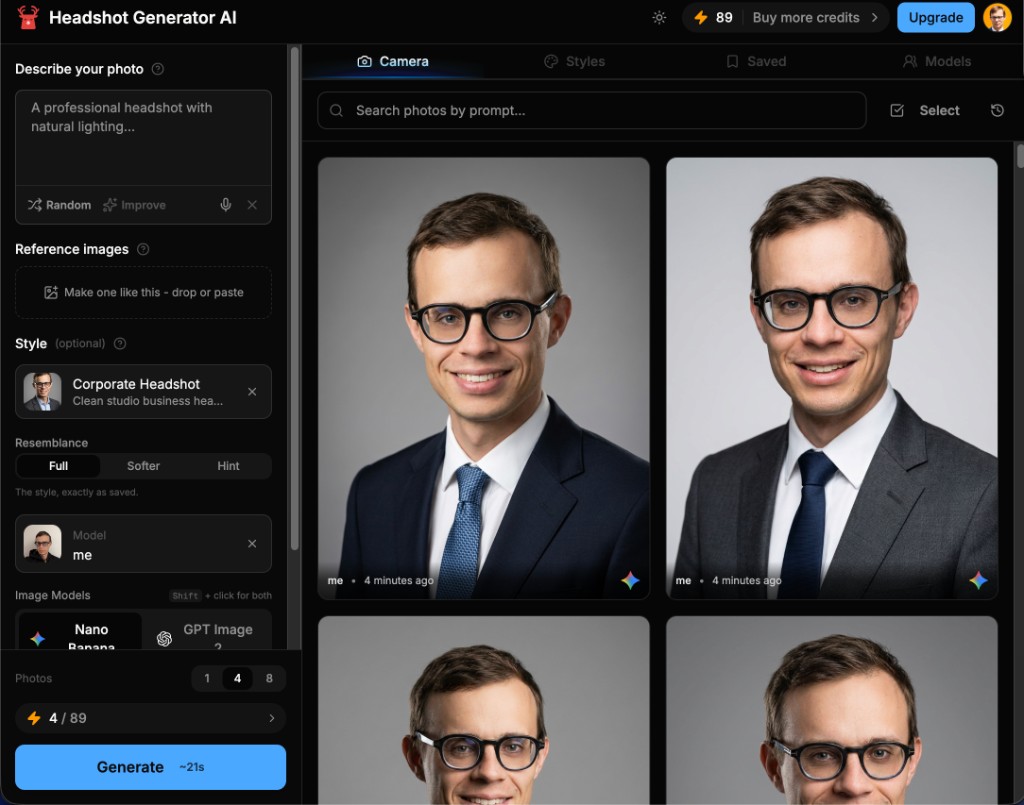
Browse the full library on /styles — filter by Professional for business headshots, preview male and female examples, and click any style to generate with yourself in it.
New accounts get free credits when you sign up, so you can generate your first batch right away and see whether the results work for your LinkedIn profile before buying more.
Create your own custom styles
You are not limited to preset looks. Upload a few reference photos — or describe the vibe in words — and Headshot Generator AI distills them into a reusable style you can generate with again and again.
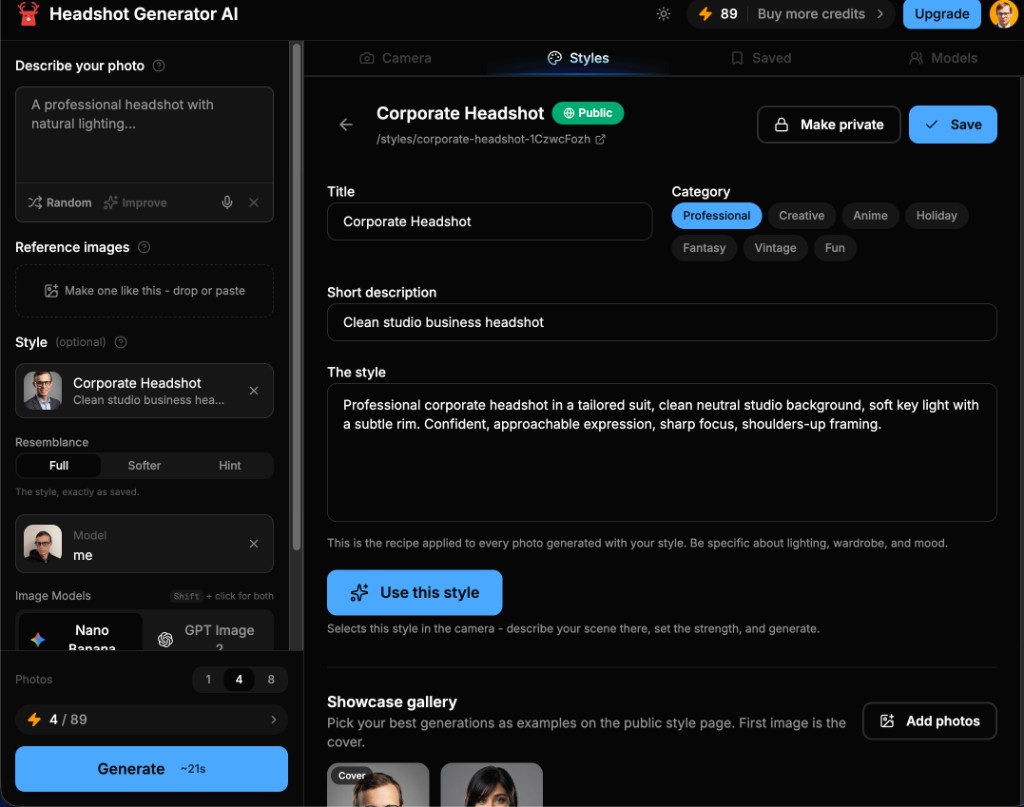
This is useful when you want something specific: a yellow background for feed visibility, a particular suit and lighting setup, or a look inspired by headshots you admire online. Save the style, set it to public if you want to share it, then hit Use this style in the camera to generate with your own face.
Try it now
The fastest path: upload a selfie below (or on the profile picture maker), pick a style from /styles, and generate. You get free credits on signup — enough to try a few looks and pick your LinkedIn headshot the same day.
AI is especially useful when you need a polished photo quickly — new job search, website refresh, speaker bio, or company directory update — without coordinating a shoot.
The best AI LinkedIn headshots still follow the same rules as traditional photography: clear framing, authentic expression, clothing that fits your role, and a background strategy that helps you stand out in the feed — not just on your profile page.
7 AI prompts for LinkedIn-ready headshots
If your tool supports custom prompts, these starting points help steer results toward a credible business portrait. Swap in details that match your brand.
- Classic corporate: “Professional LinkedIn headshot, head and shoulders, neutral grey studio background, soft even lighting, navy blazer, confident natural smile, sharp focus on eyes.”
- Stand-out feed avatar: “Professional LinkedIn headshot, head and shoulders, solid bright yellow background, navy blazer, approachable expression, sharp focus on eyes, photorealistic.”
- Startup founder: “Modern LinkedIn profile photo, head and shoulders, clean white background, smart casual black t-shirt, approachable expression, minimal retouching, photorealistic.”
- Consultant / coach: “Executive LinkedIn headshot, head and shoulders, blurred office background, business casual shirt, warm natural light, trustworthy relaxed smile.”
- Creative professional: “Professional portrait for LinkedIn, head and shoulders, muted studio backdrop, subtle style, authentic expression, high-end editorial lighting.”
- Remote tech worker: “Clean LinkedIn headshot, head and shoulders, soft home-office blur background, casual button-down shirt, friendly neutral expression, realistic skin texture.”
- Finance / legal: “Conservative LinkedIn headshot, head and shoulders, dark studio background, tailored suit, composed professional expression, crisp detail.”
Use these as templates, not rigid scripts. The goal is a photo that looks like you — just better lit, better framed, and ready for LinkedIn.
LinkedIn headshot mistakes to avoid
Even strong photos fail when small details are off. Watch for these common issues:
- Group photos cropped to your face — other people, pets, or event backgrounds still read as unprofessional.
- Low resolution or pixelated uploads — re-export from the original file instead of screenshotting.
- Extreme angles — photos taken from below or above distort your face.
- Sunglasses or hats — hide too much of your identity for a business profile.
- Over-editing — plastic skin and glowing teeth reduce trust.
- Outdated images — hair, glasses, or age mismatches create awkward first meetings.
LinkedIn is not Instagram or a dating app. Treat your headshot like a digital business card.
When to use AI vs a photographer
Both options have a place.
Choose DIY or AI when you need speed, you are comfortable iterating at home, or you want several looks for different platforms without a large budget. Start with the AI profile picture maker — upload a selfie, pick a style, and generate in minutes.
Choose a photographer when your company requires brand-matched team photos, you want in-person direction, or you need print-quality assets for press kits and annual reports.
Many professionals start with AI for LinkedIn, then invest in a live shoot later for a full brand refresh. That is a sensible path — what matters most is having a current, credible photo live on your profile.
Make your LinkedIn headshot today
You do not need perfect conditions to improve your profile. Start with what you have: a phone, good window light, and a few honest selfies — or upload those photos to the AI profile picture maker and pick a polished result in minutes.
A strong LinkedIn headshot is one of the highest-return updates you can make to your professional presence. It takes minutes to change and pays off every time someone views your profile.
Ready to try it? Upload a photo on the profile picture maker or use the form below to generate a LinkedIn-ready portrait instantly.
Make your first headshot
Upload a selfie, pick a style, and get a LinkedIn-ready portrait in minutes — no studio required.
Drop a photo here
JPG, PNG, or WEBP up to 10MB